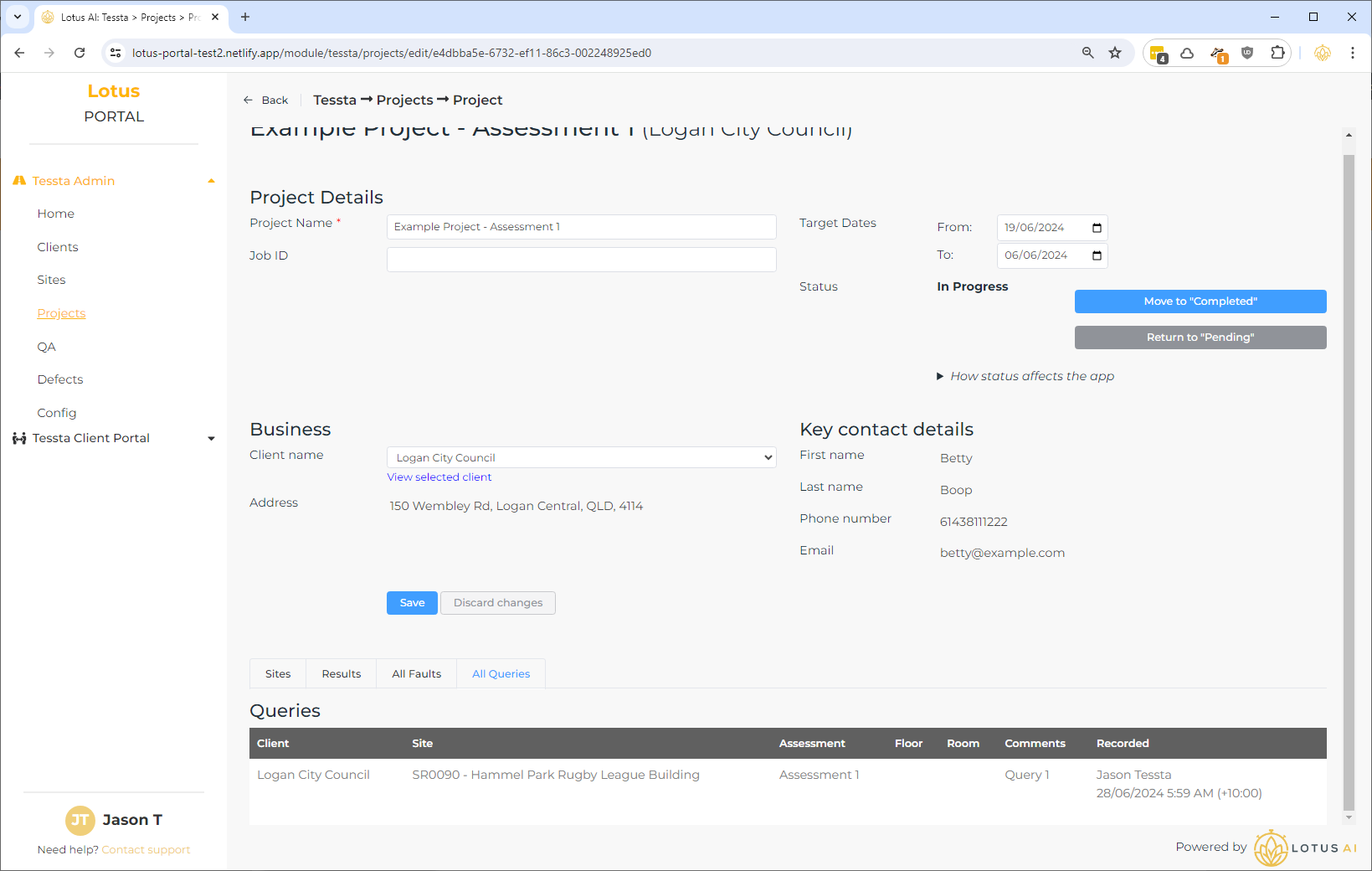
Projects
Once you have created clients and sites, you can create projects.
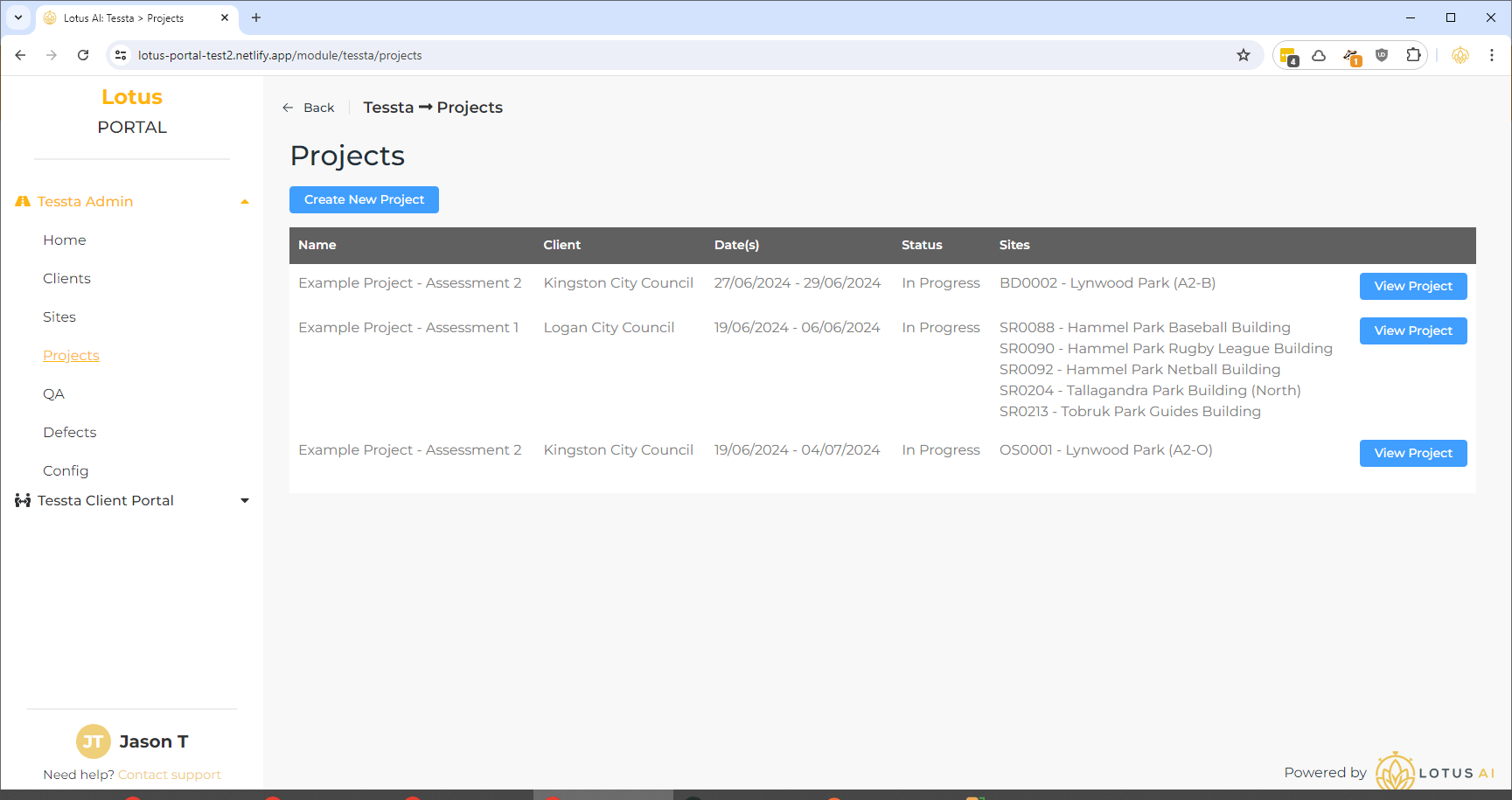
You need to save the basic details of a project before adding sites and assessments, and assigning to a person.
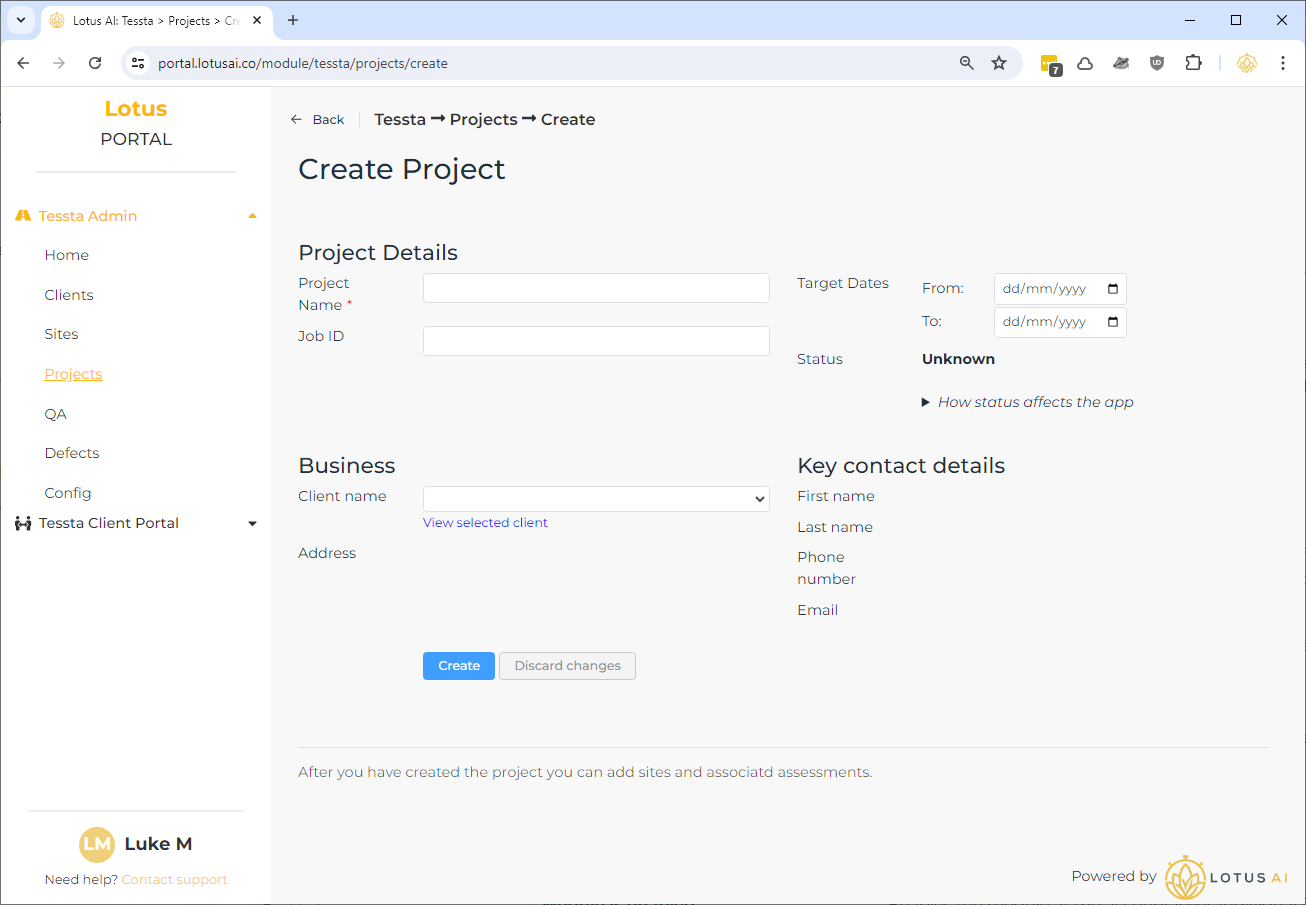
“Target Dates” control when assessments for the project appear in the app. Assessments will only appear once the “From” target date has been reached (regardless of whether the status is “Pending” or “In Progress” – this can be refined after some initial testing).
In order to ensure no data in the app is accidentally lost in the early stages of testing, once a target “From” date is reached the assessments in a project will only be removed from the app after a project is moved to a “Completed” status. This will give you an opportunity to verify all data has been saved from the app.
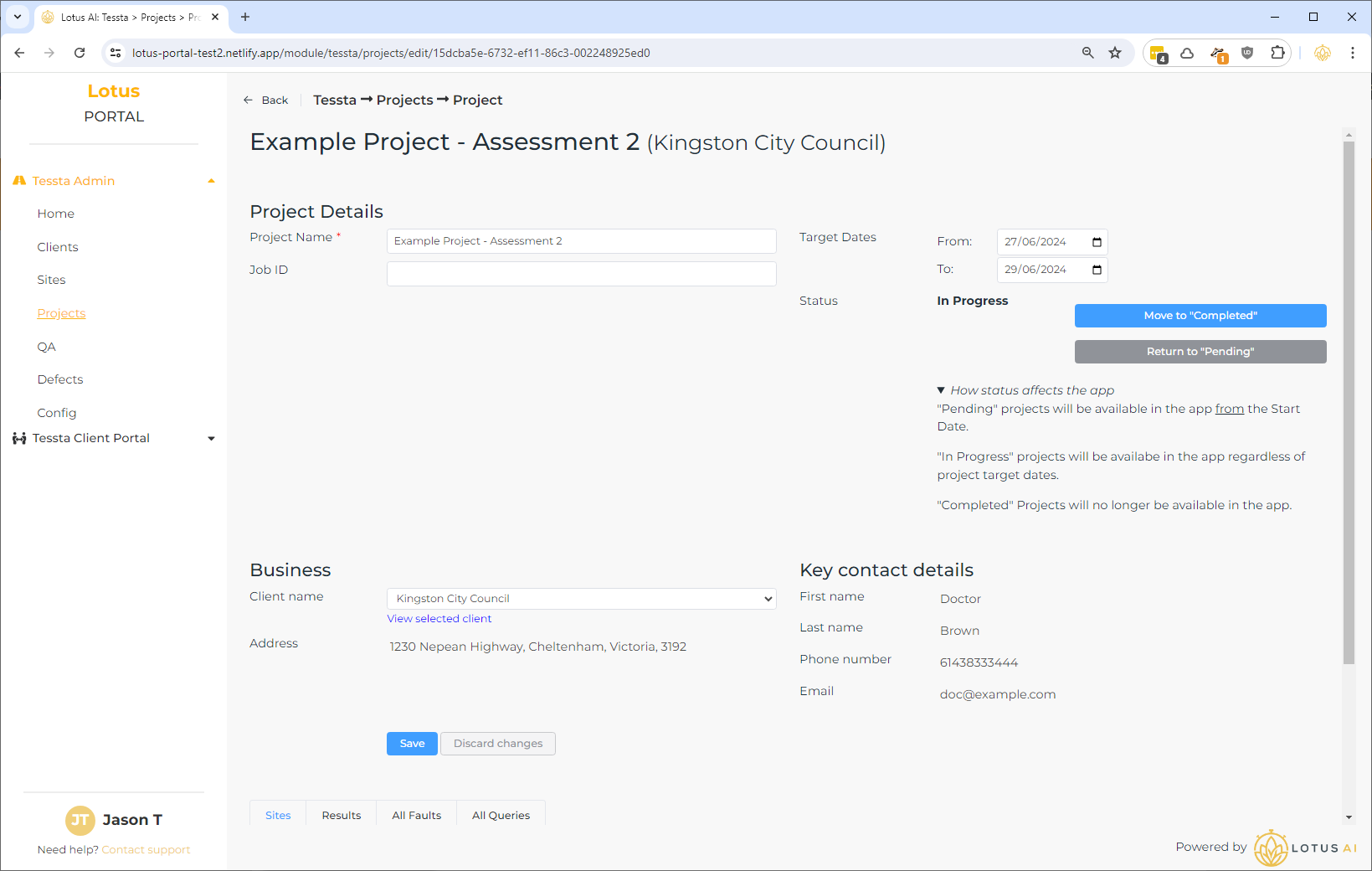
After a project is first saved you can start adding adding site/assessment combinations and assigning to a person:
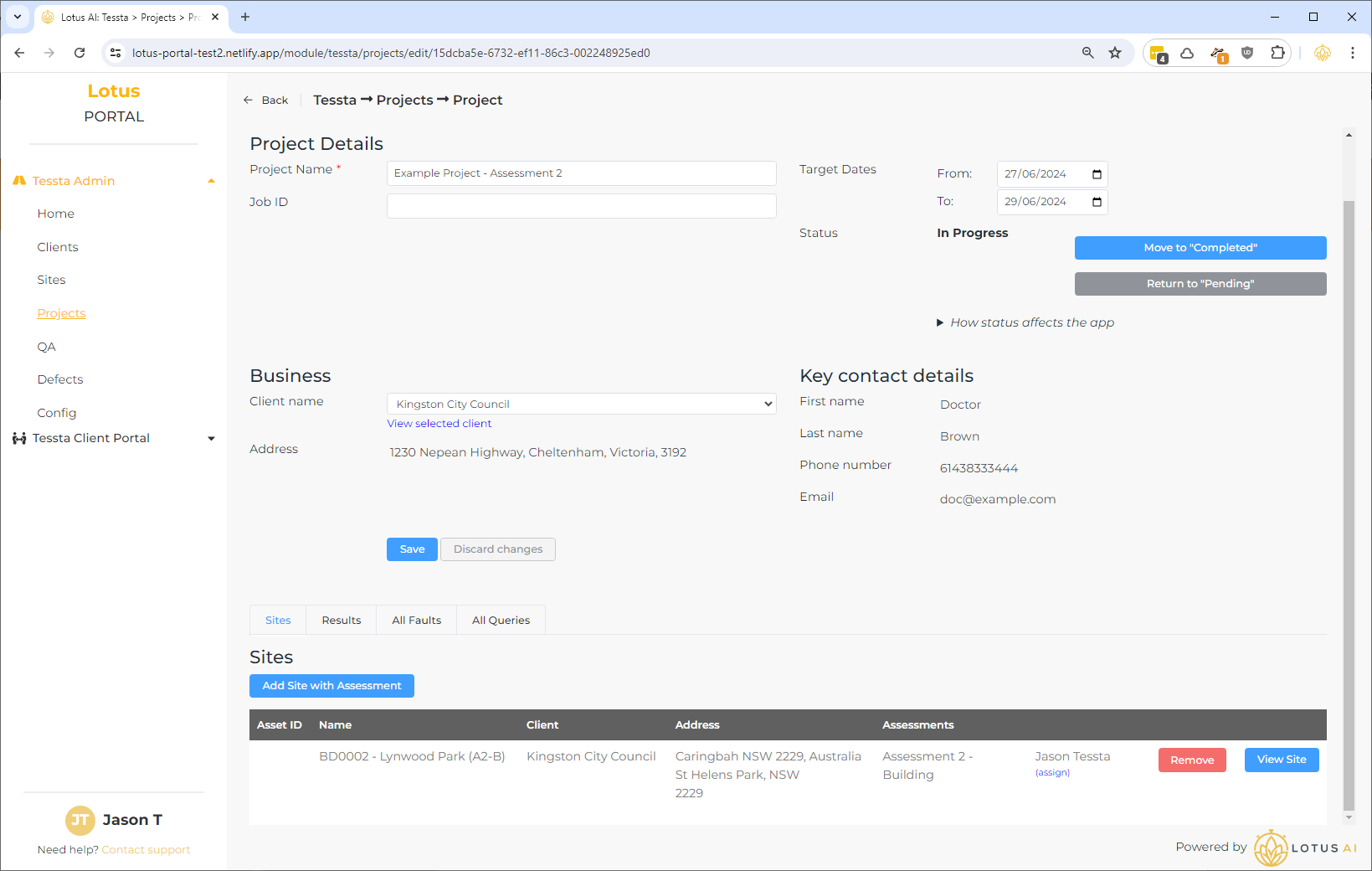
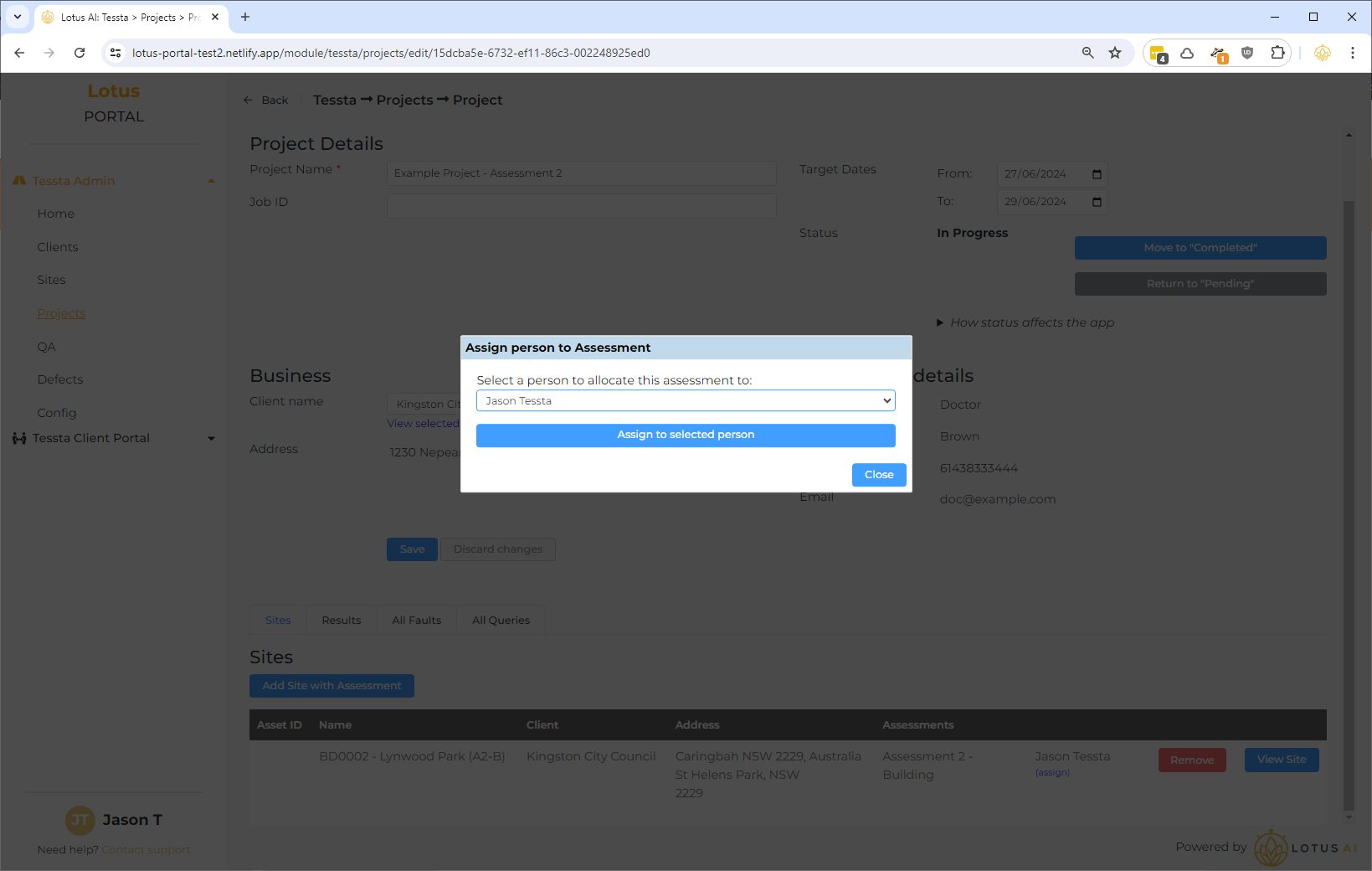
To assign a site assessment to someone, select the “assign” link under the name (which will initially be “Unassigned”). Select a person from the list and select “Assign to selected person”. This can be changed at any time.
- NOTE: I have not thoroughly tested what happen when someone starts working on a site assessment in the app and it is later changed.
- NOTE: Floor level assignment is not yet implemented – only assessment level within a site.
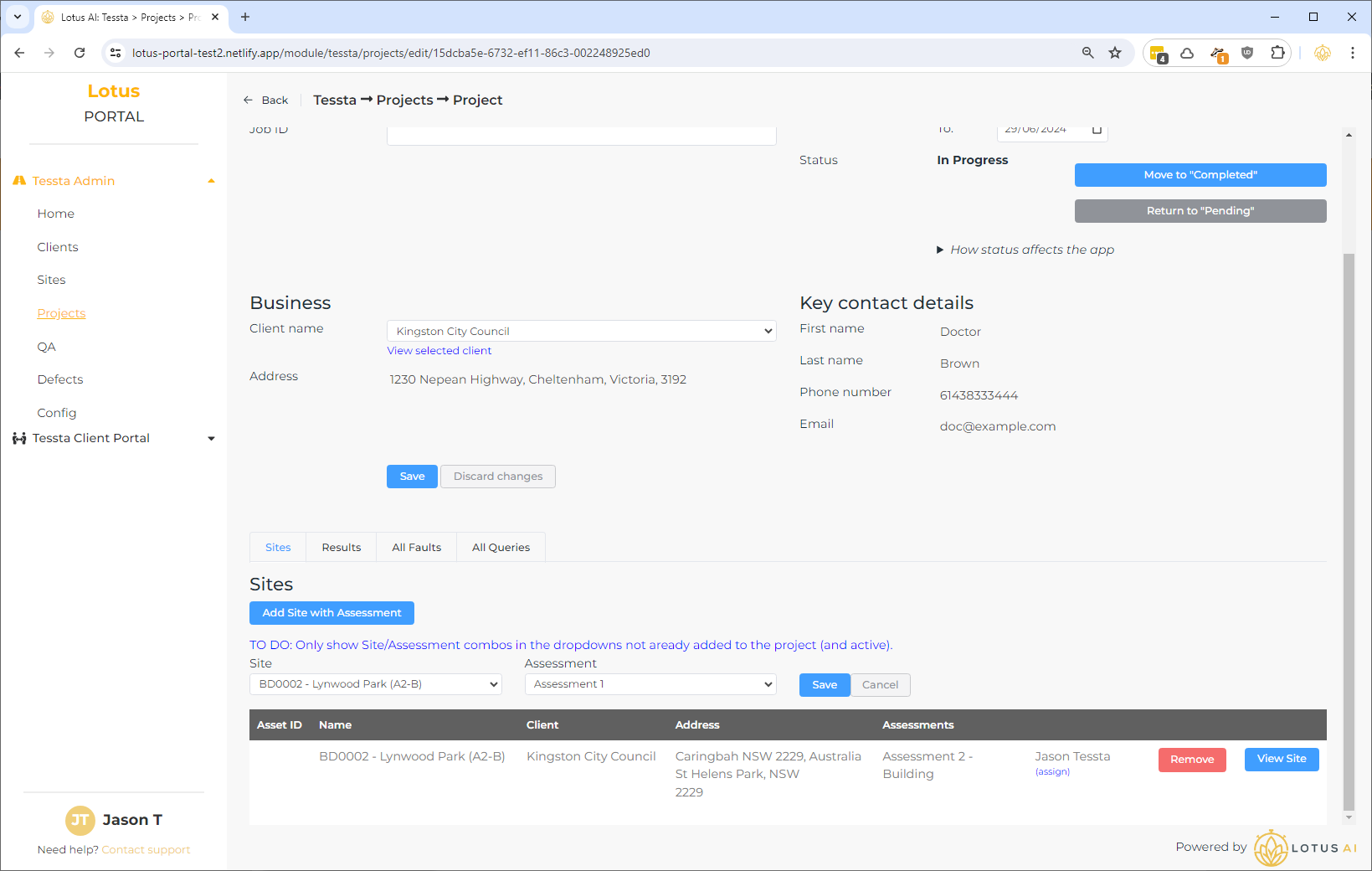
A Site and Assessment is added to a project as a pair.
A Site can have multiple different assessments added to a site.
- NOTE: I need to add restrictions to ensure an assessment can only be added once to a site. That being said, will we need to be able to assign multiple people to an overall site assessment?
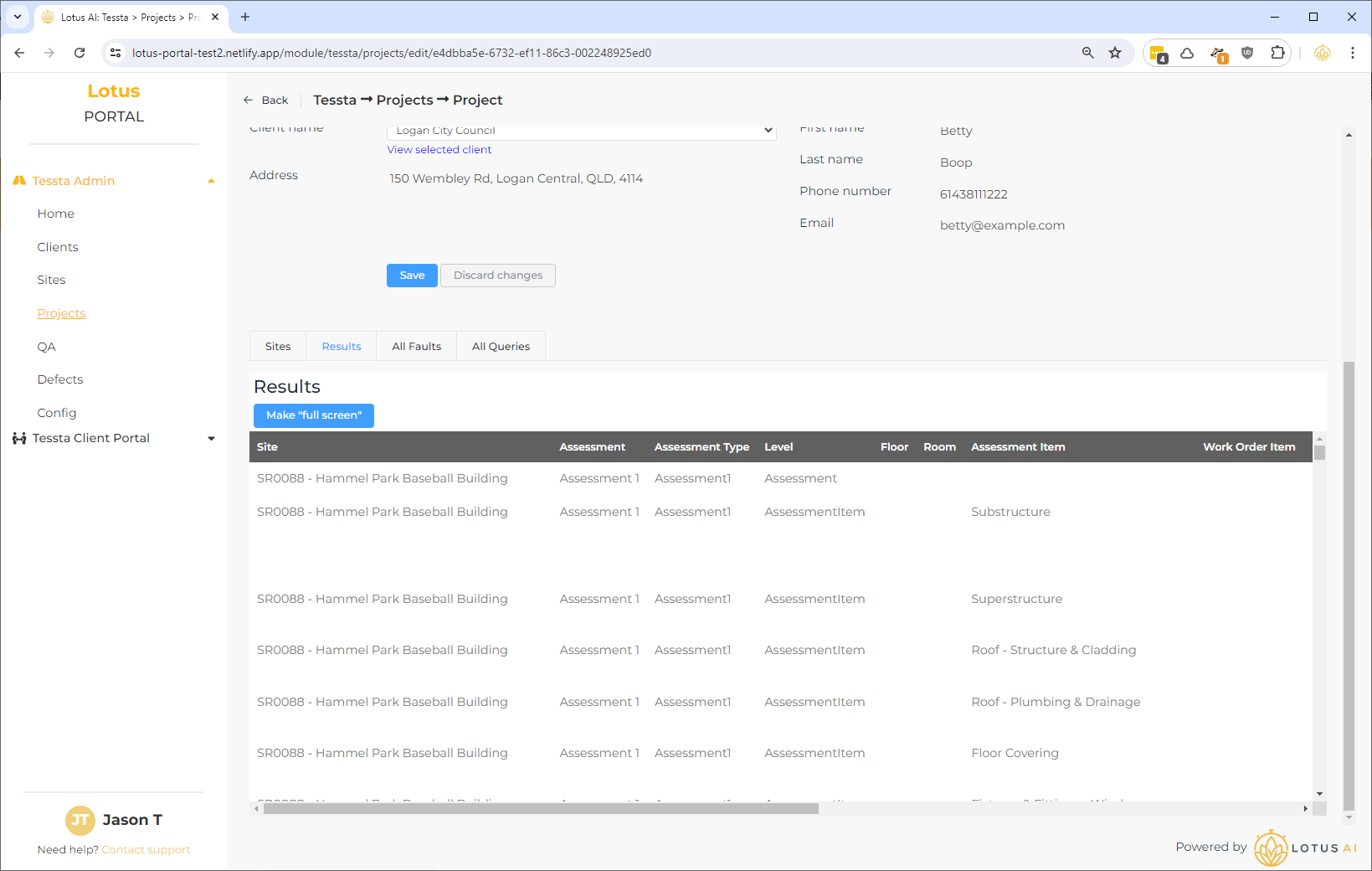
All results recorded for a project (from all people) are recorded in the “Results” tab. It’s not the cleanest view but it has all the information. Use the ‘Make “full screen”‘ button to expand the table to full screen:
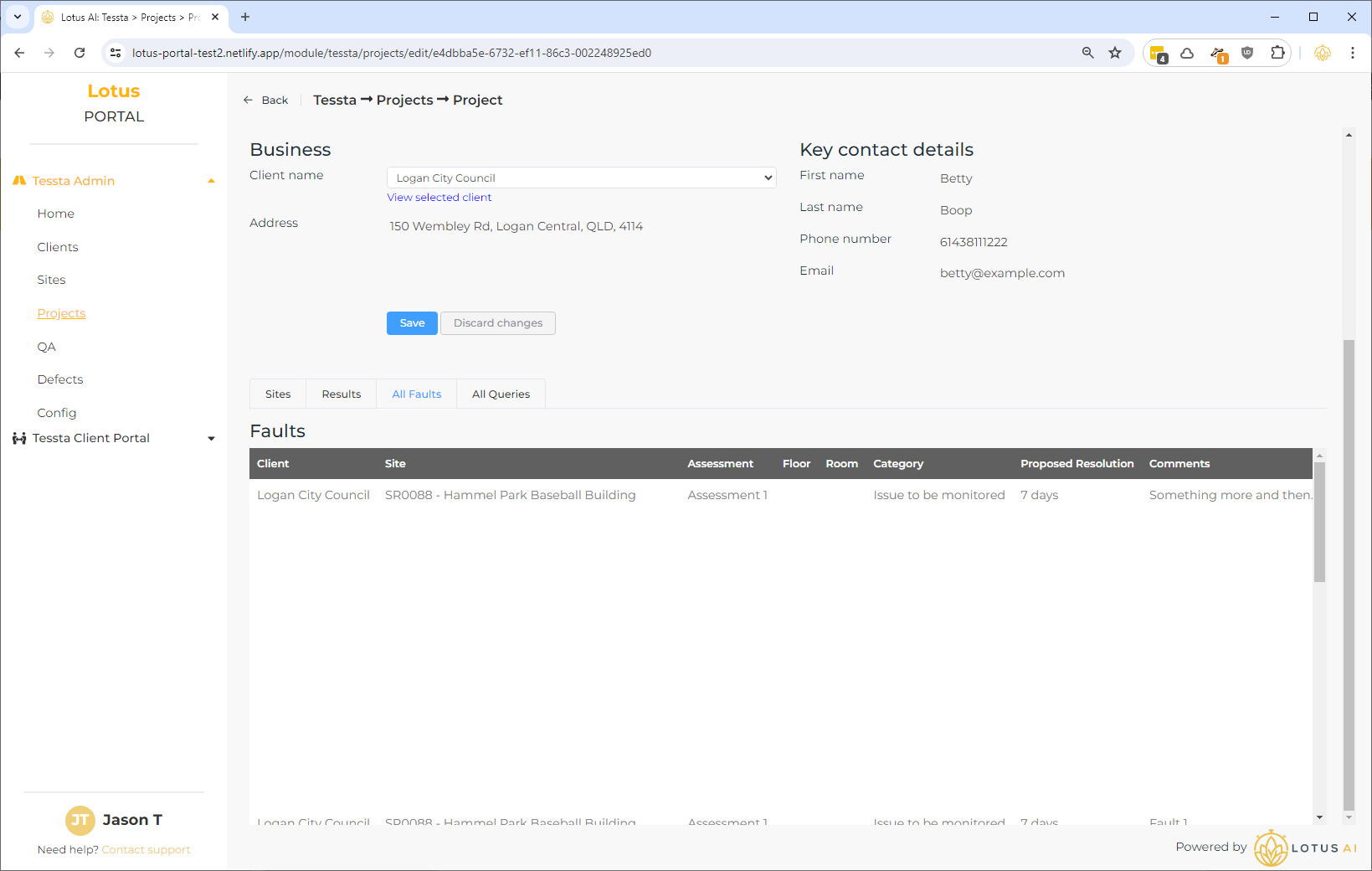
All faults recorded against a project can be viewed in the “All Faults” tab:
All queries recorded against the project can be viewed in the “All Queries” tab: