Configuration (Assessments, Assets & Reference Data)
Assessments, Assets and Reference Data can be managed via the “Config” page.
Reference Data
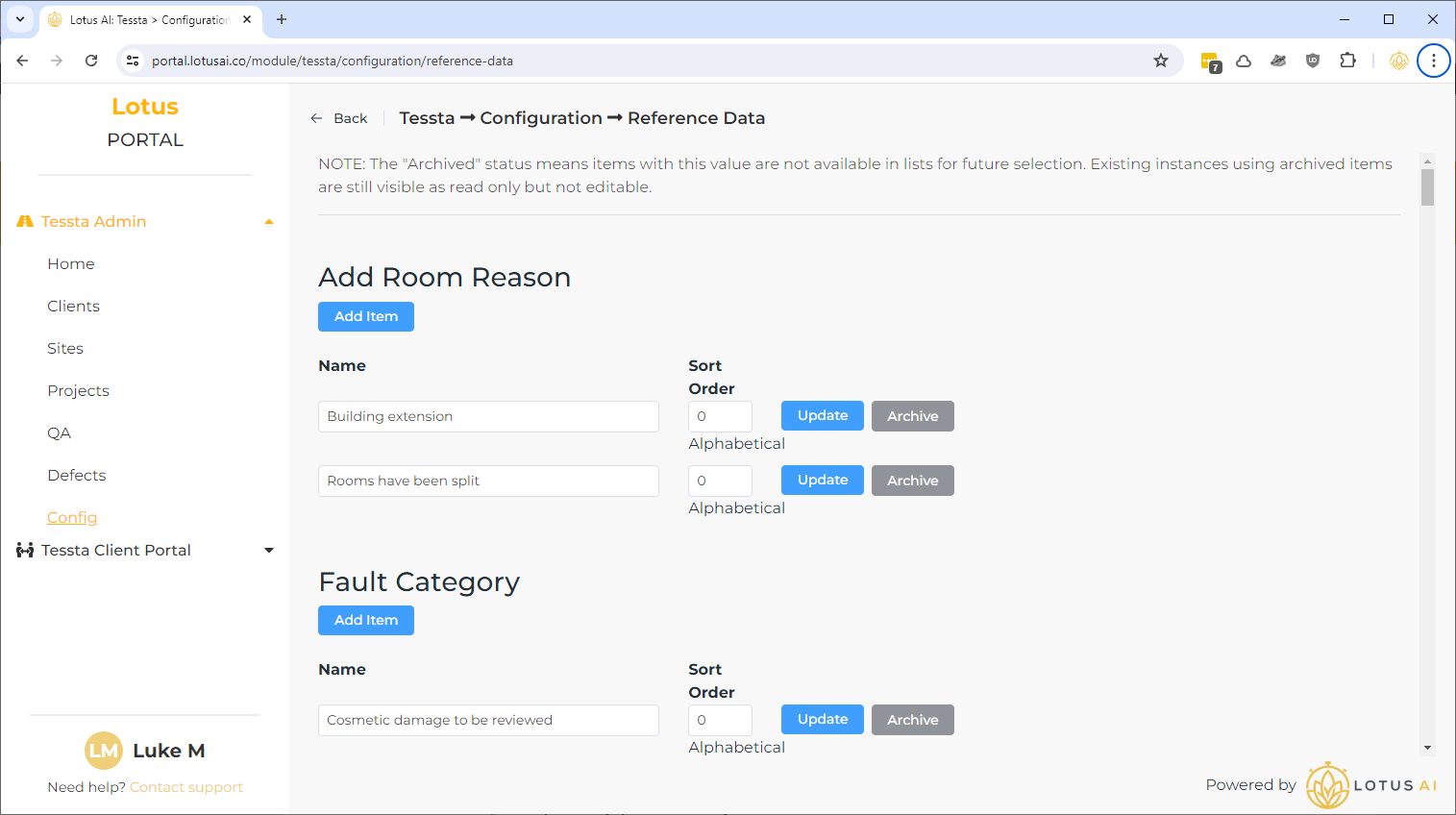
Reference data includes everything that appears in select lists.
The account has been pre-populated with reference data collected during development from discussions and example spreadsheets.
- Each item is just the “Name” (which can be anything).
- “Sort Order” is how it appears in lists. All data sets are sorted alphabetically by default.
- Add new items to a set with the “Add Item” for that set.
- Items no longer needed are “archived”, not deleted. We archive so they can can continue to be referenced for display in the future.
- Archived items no longer appear for selection in new lists (however, they will appear and be disabled when they have been selected in an existing list).
- Archived items can be restored for selection at any time.
Assessments
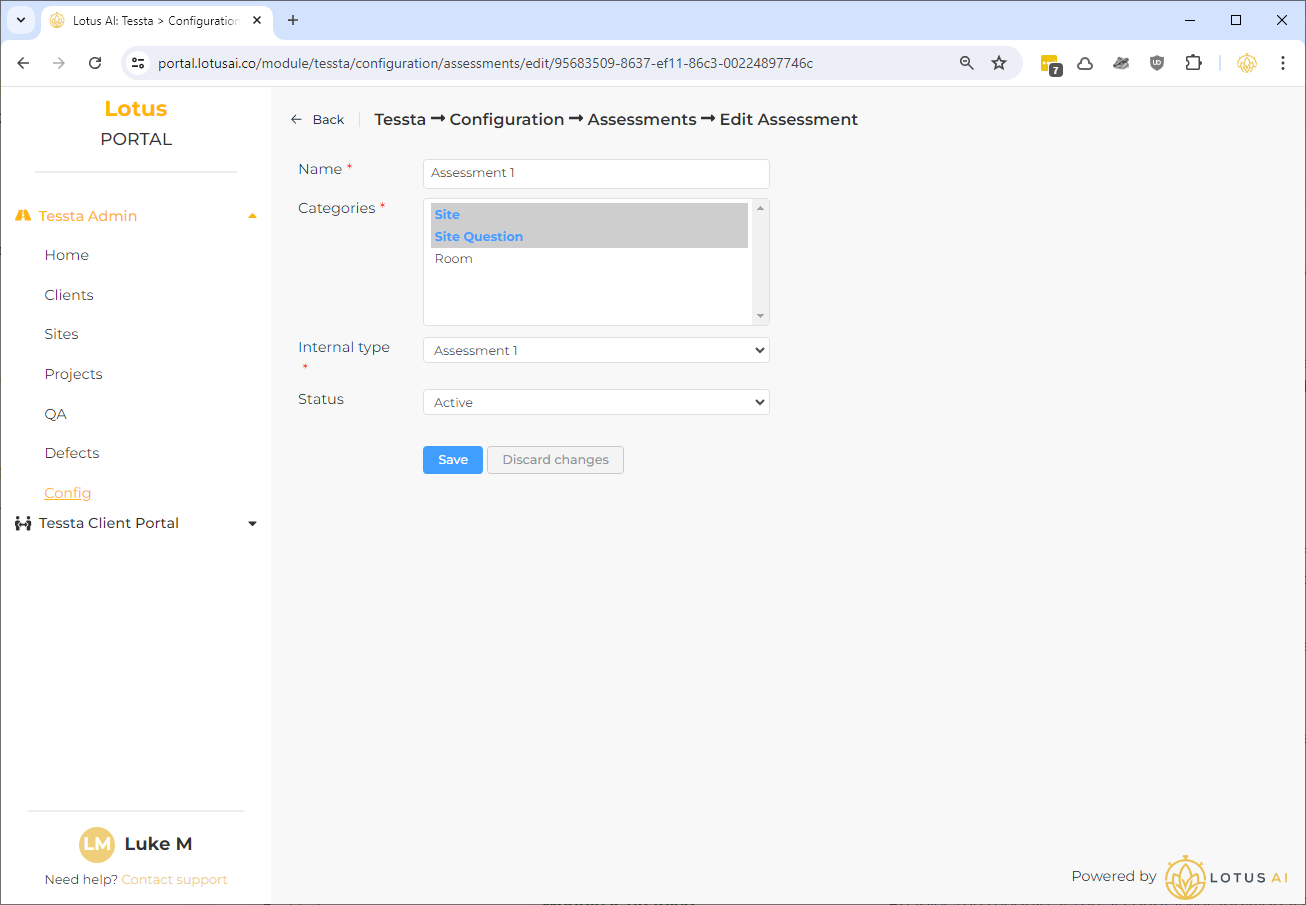
I have pre-configured the 3 common assessment types: “Assessment 1”, “Assessment 2 – Building” and “Assessment 2 – Open Space”.
- Note: I plan on locking these 3 assessments from editing because there is currently an expectation they will exist in their current state.
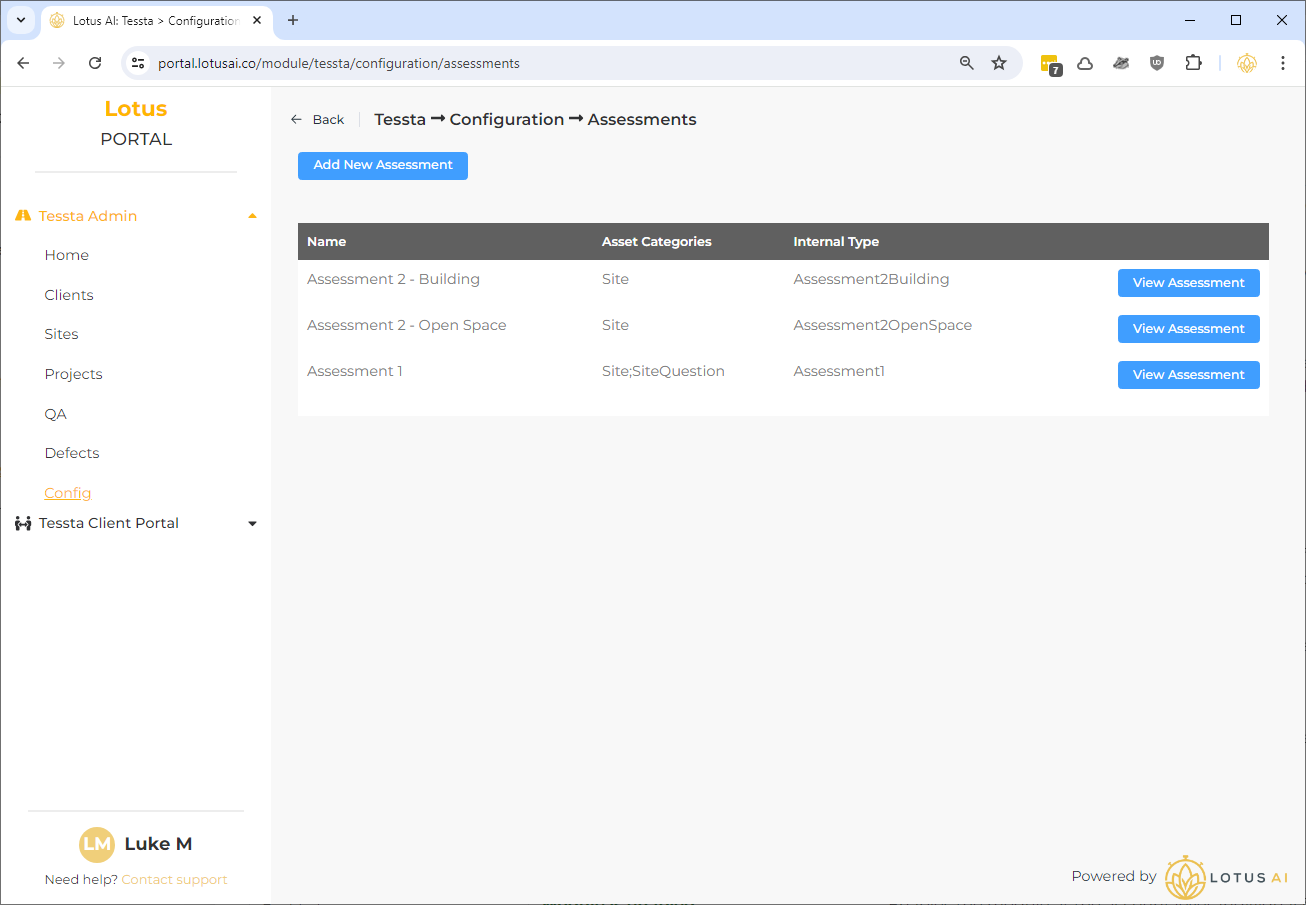
- “Internal Type” is a code used to control how assets are brought together when preparing data for use in the app. It is also used to determine when global “Assessment 1” and “Assessment 2 – Building” assets are automatically included in the assessment in a project.
- “Categories” relate to the “Asset Category” of assets, and is used to control how assets are brought into a site for use in a project.
- How it works: A site can have a whole range of assets assigned to it. Each asset is of a particular “asset category”. When setting up a site in a project, we say “in the project, we want this site and we want to ran this assessment for it”. When that particular assessment for the site appears in the app, only the assets of the same “asset catergory” as those selected in the assessment will appear.
You can setup a site in a project to have multiple different types of assessment.
- How it works: A site can have a whole range of assets assigned to it. Each asset is of a particular “asset category”. When setting up a site in a project, we say “in the project, we want this site and we want to ran this assessment for it”. When that particular assessment for the site appears in the app, only the assets of the same “asset catergory” as those selected in the assessment will appear.
Assets
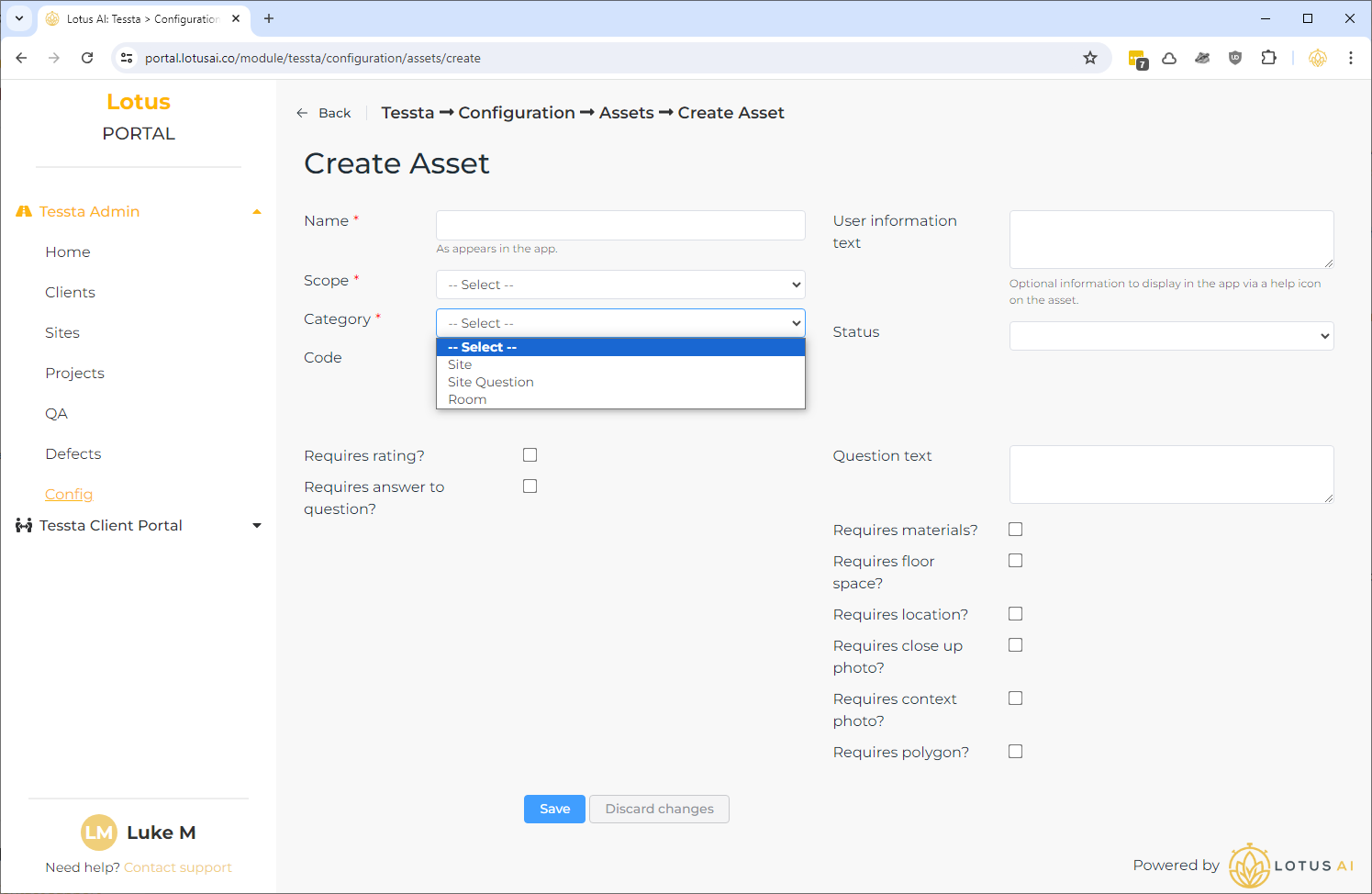
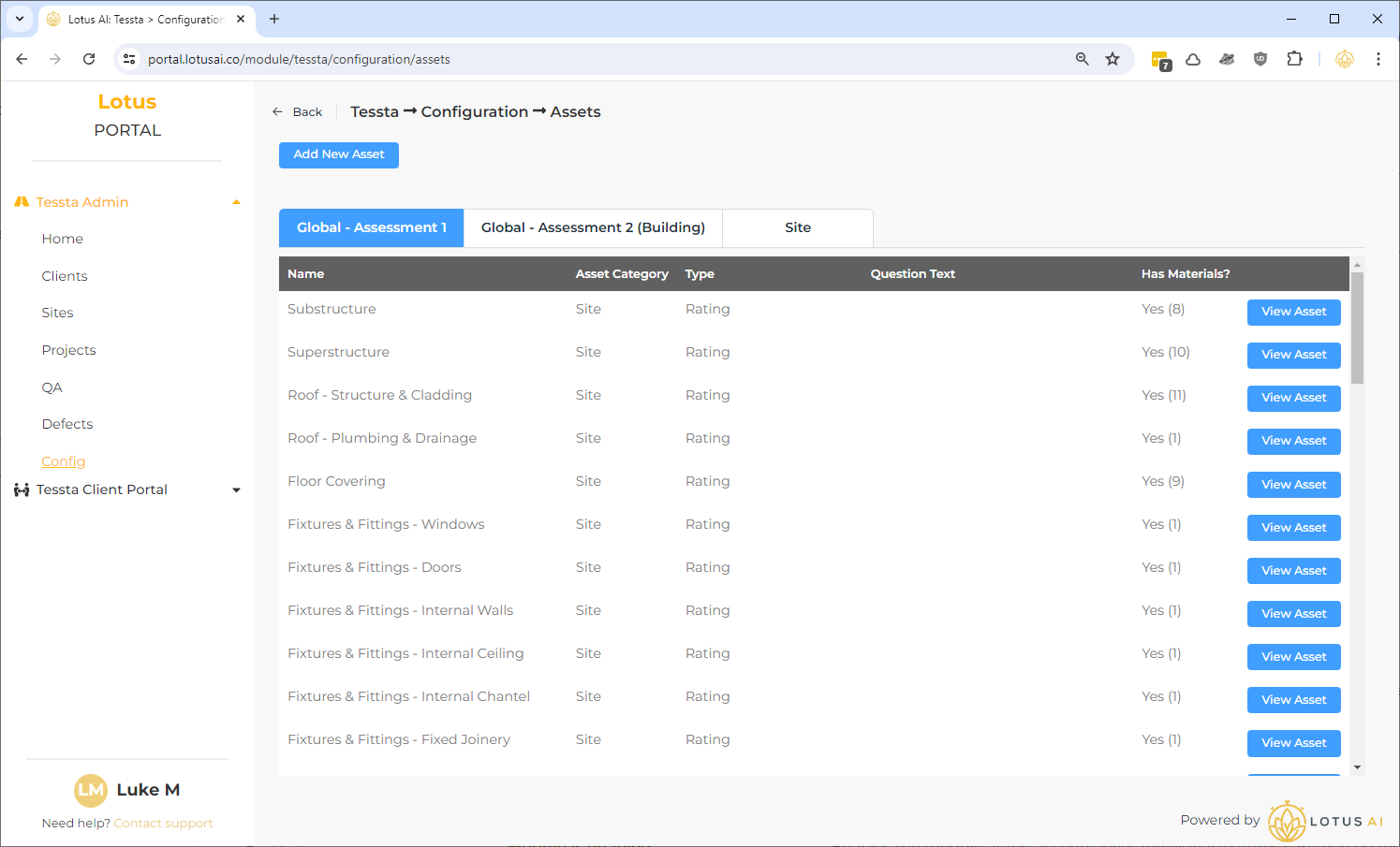
Assets correspond to the valuation items and work order items that appear in the app. It is a generic concept that can cover both types of item based on how they are configured.
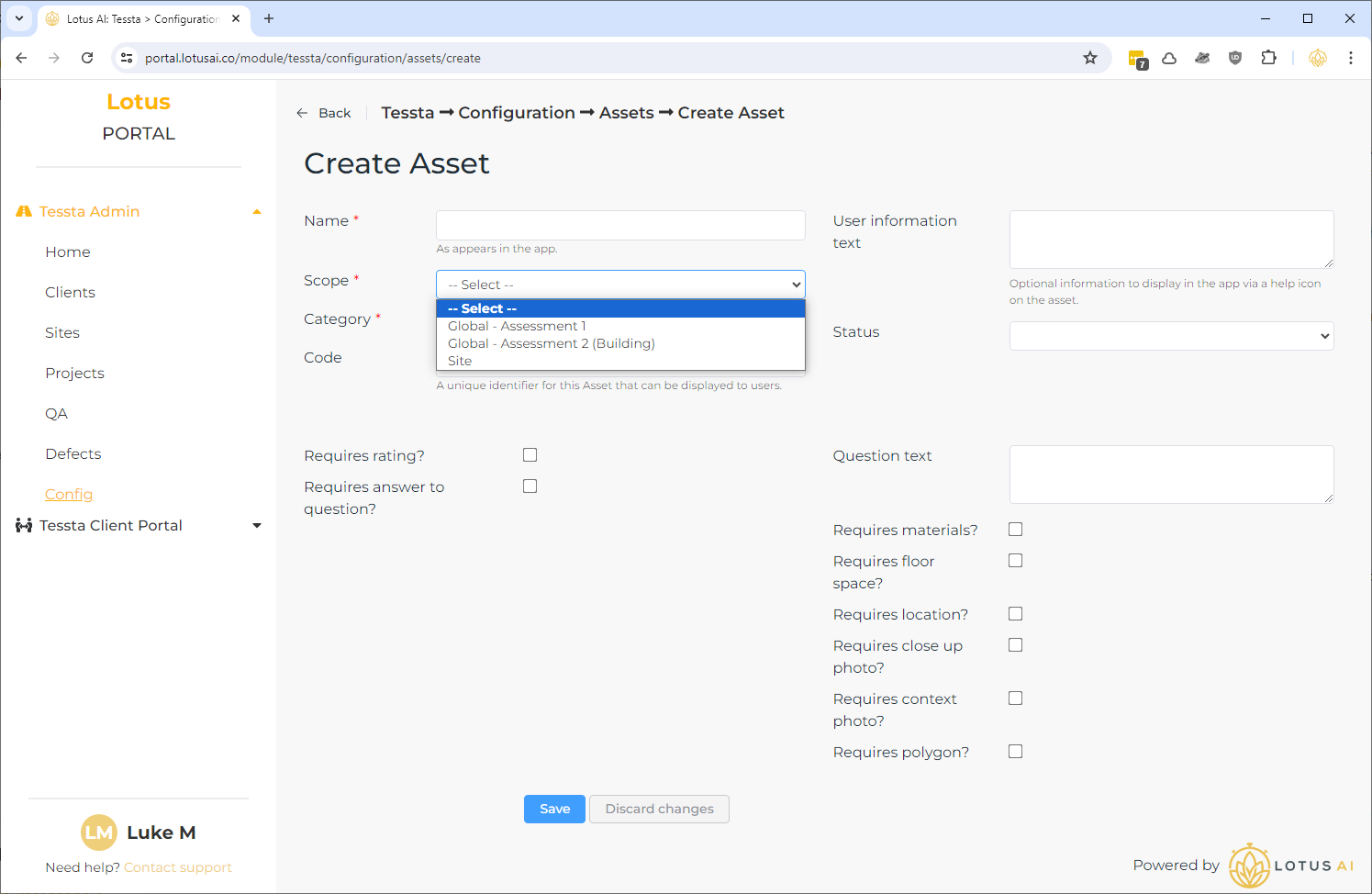
We also have 2 different types of asset:
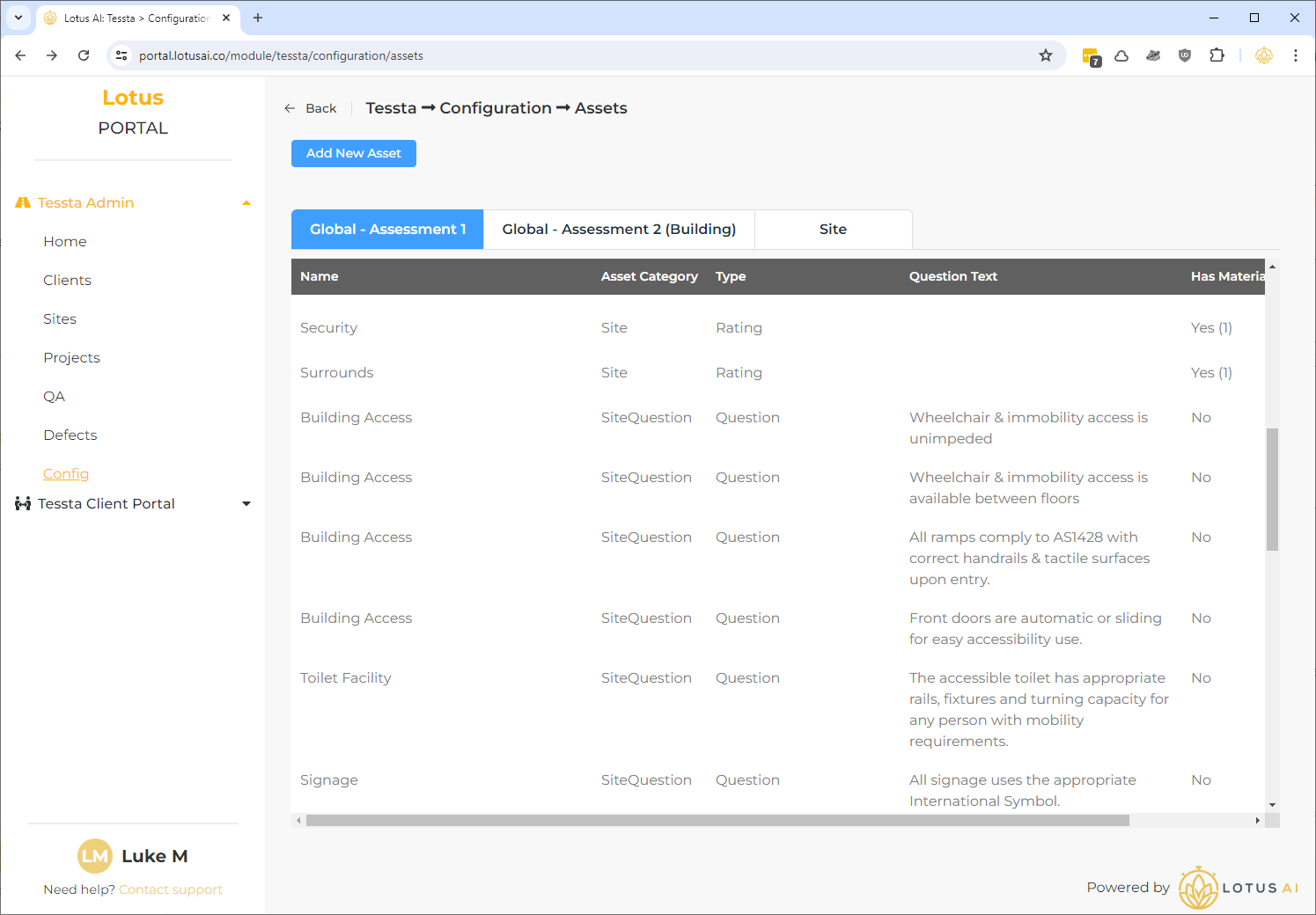
- “Global”: There are 2 types of global asset – “Assessment 1” and “Assessment 2 – Building”. These are the common assets that will be picked up automatically assigned to their corresponding assessments of the same name. So, when creating a project, adding a site and assigning either of those 2 assessments to the site, the corresponding assets will be automatically used in the app.
- “Site”: These are assets that are specifically assigned to a single site.
- NOTE (July 2024): implementation is not quite finished. If you need to asset to a site contact Jason first.
Valuation Items
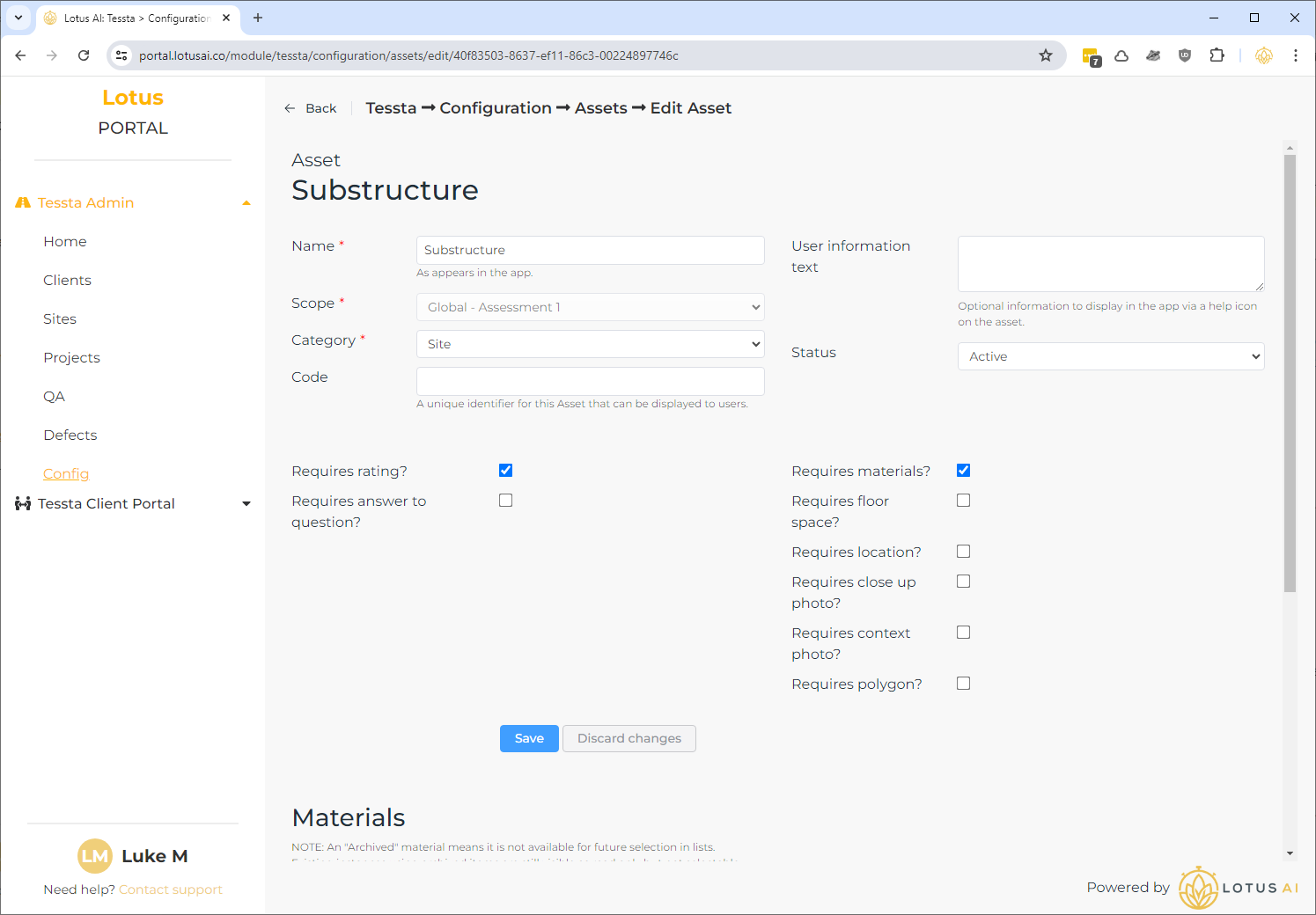
To create a valuation item, tick “Requires rating”. Only the optional available to that item type will appear on the right hand side.
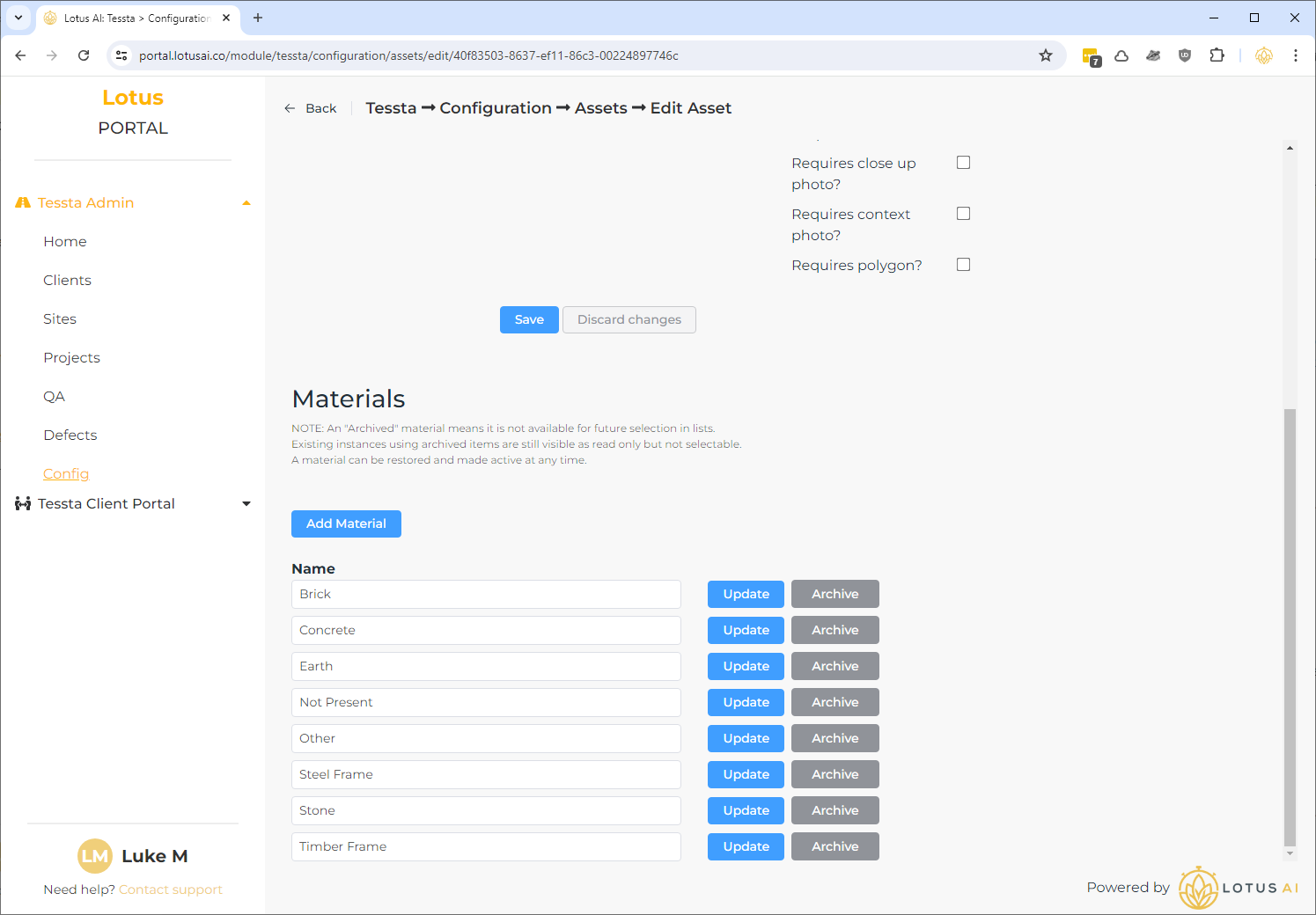
To have a materials list in the app, tick “Requires materials”. A new section below the checkboxes will appear to allow materials to be added and managed.
Work Order Items
You can view work order items in the “Global – Assessment 1” list. They have a “Type” of “Question”.
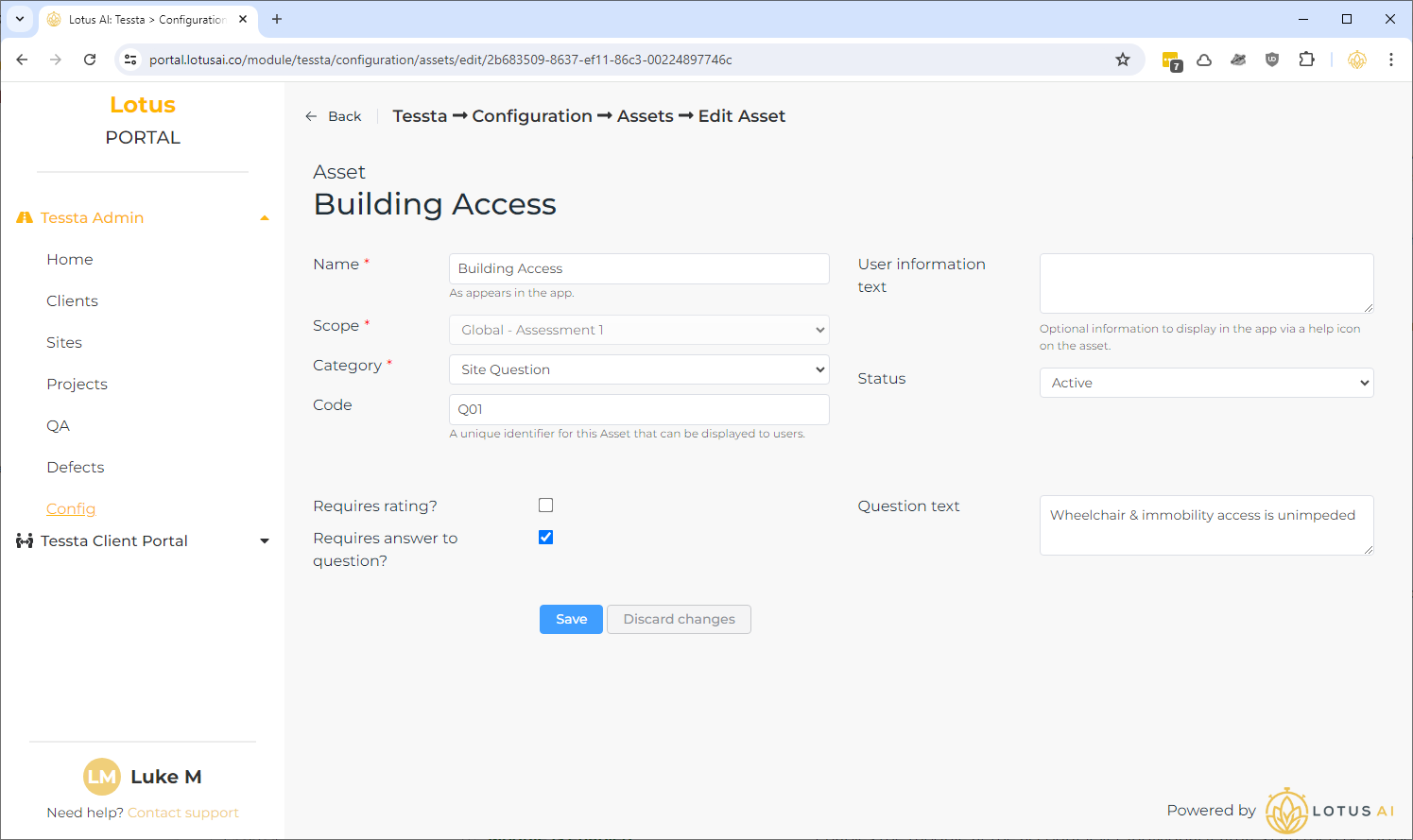
This item tick is defined by ticking “Requires answer to question”. Only the “Question text” is available.
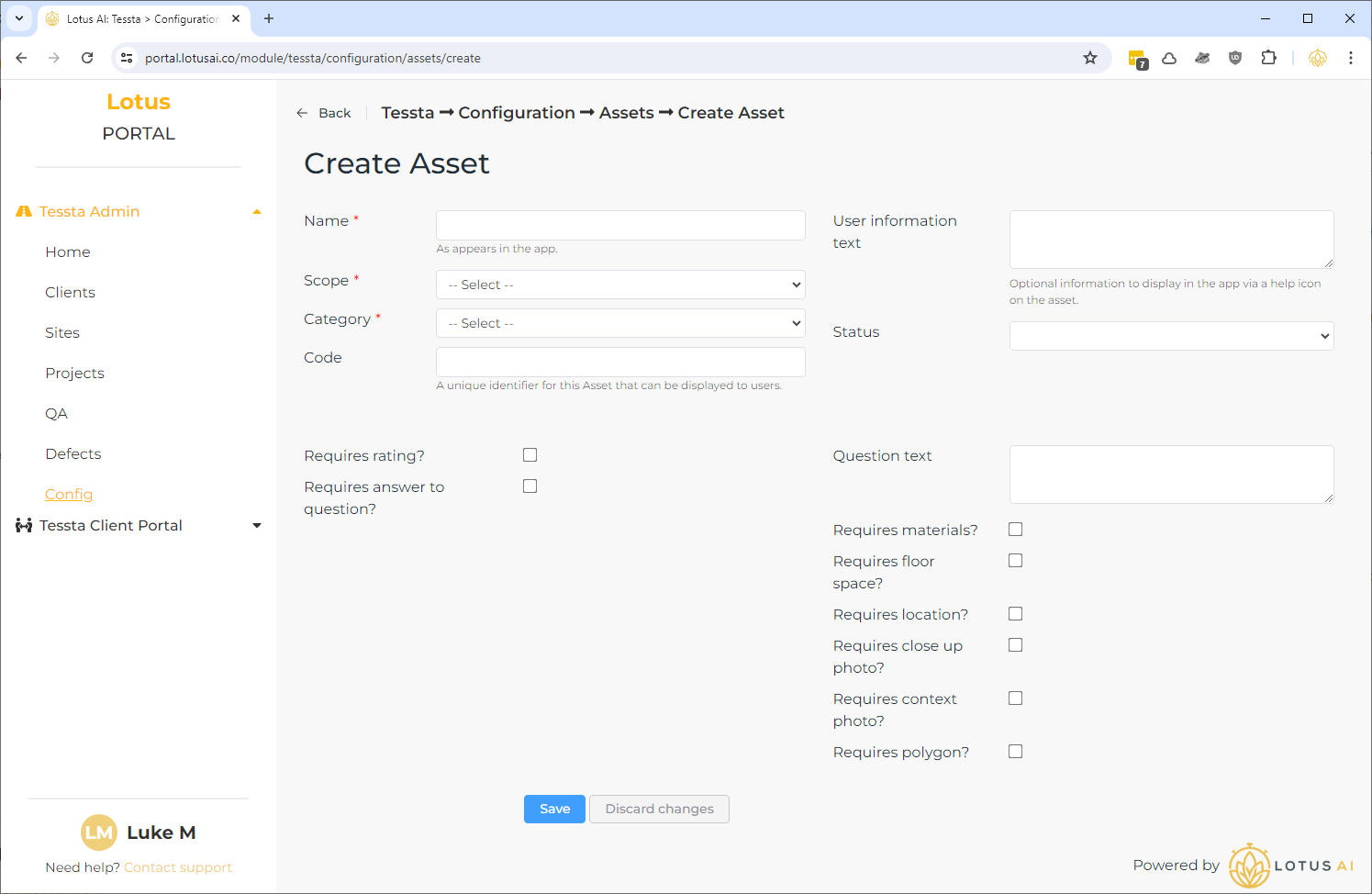
Start adding a new asset.