How Can We Help?
Accessing timesheets
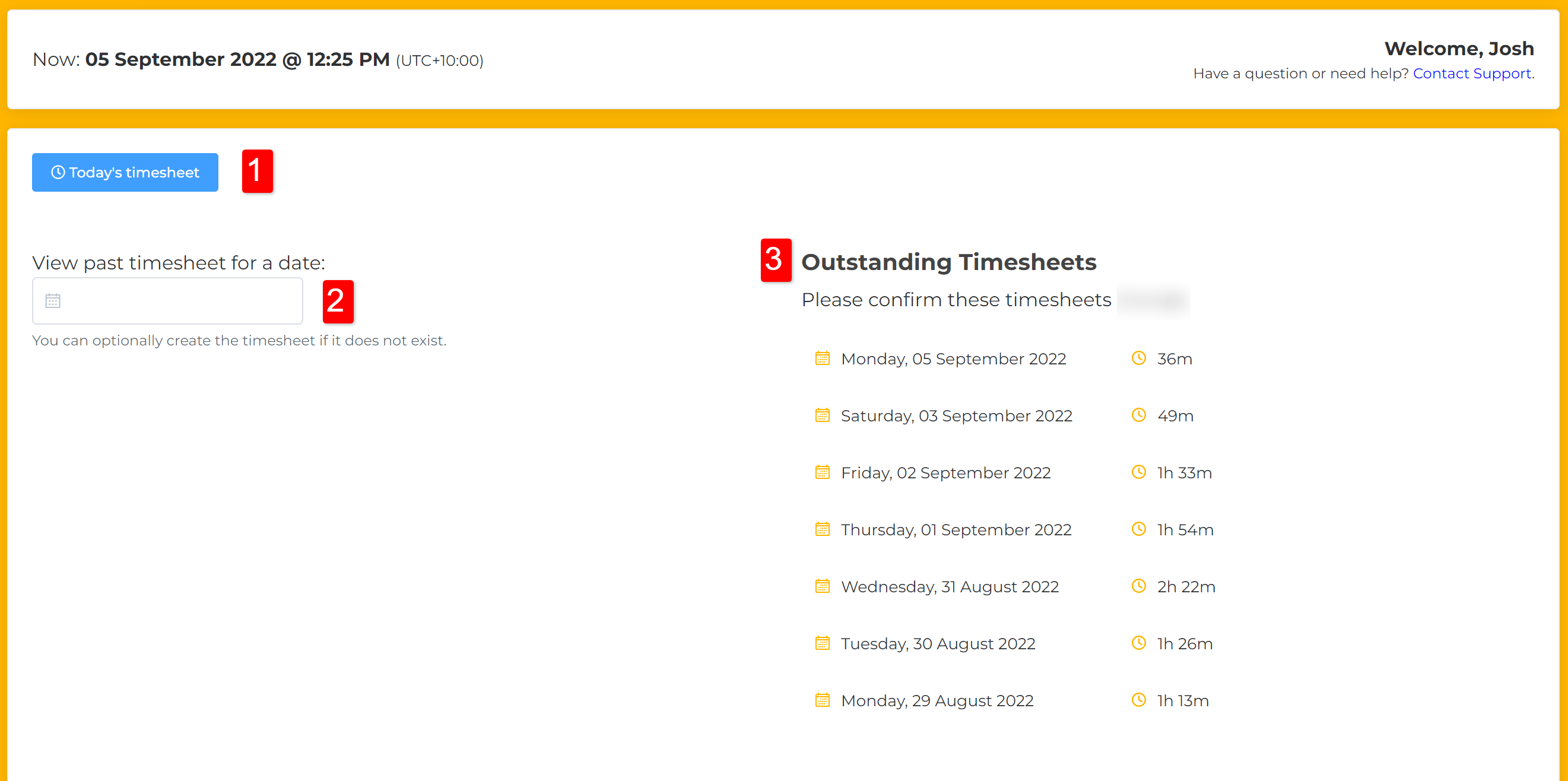
Timesheets are accessed via the Portal. When you login, the home page will show you:
- A button to take you to your live timesheet for today
- An option to look up a timesheet from a specific date
- All timesheets which require your approval on the right
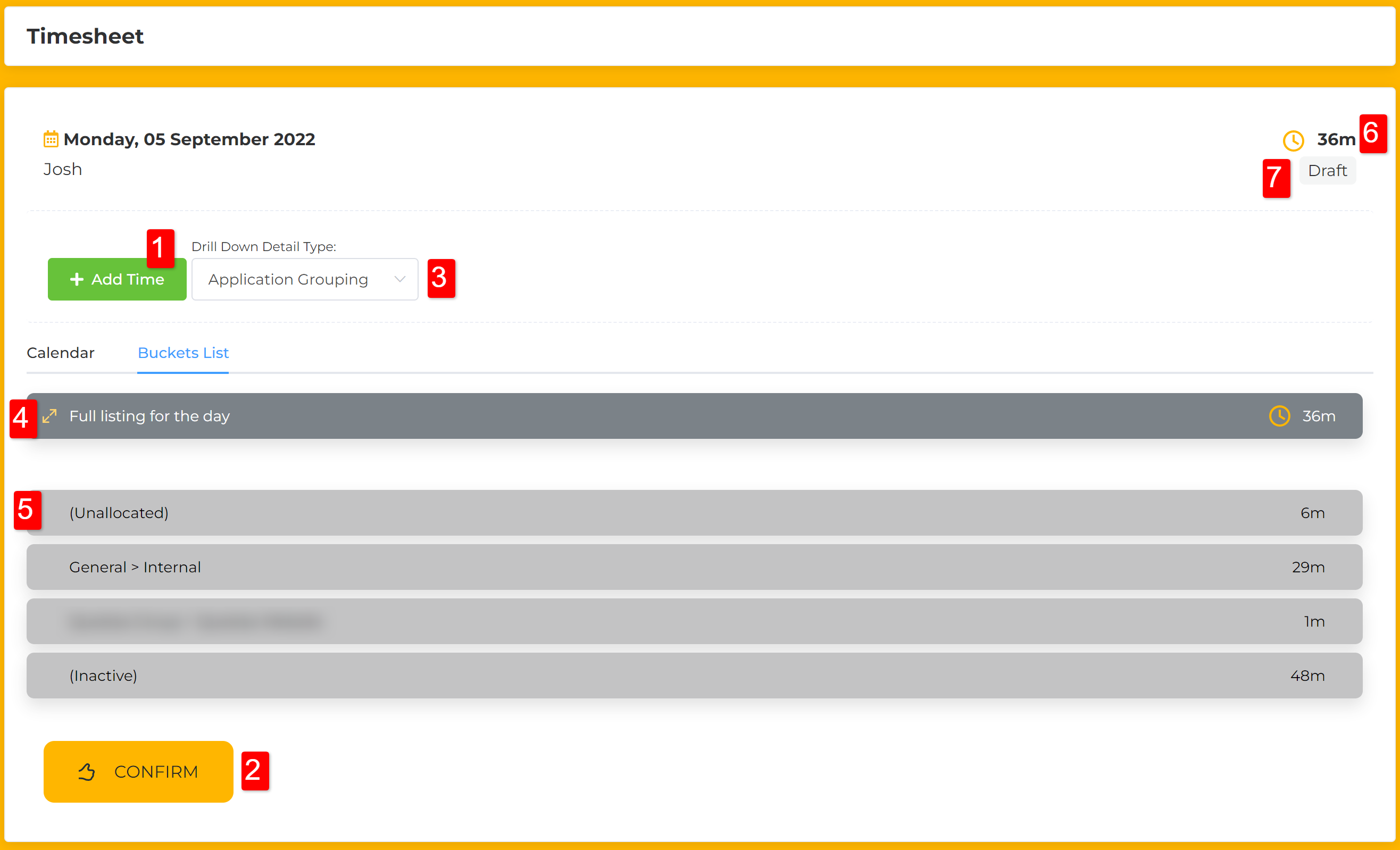
On your timesheet, you can see and do a number of actions.
- Add manual/offline time that isn’t captured by the system
- Confirm your timesheet for the day
- Change the way the detailed view data is displayed
- Expand to see all of your time for today
- The different buckets your time has been captured against and the time per bucket
- The total amount of time recorded for today
- The current status of the timesheet
By opening the details (items 4 and 5 above) you get to see the detail which was used to determine the amount of time allocated to the buckets.
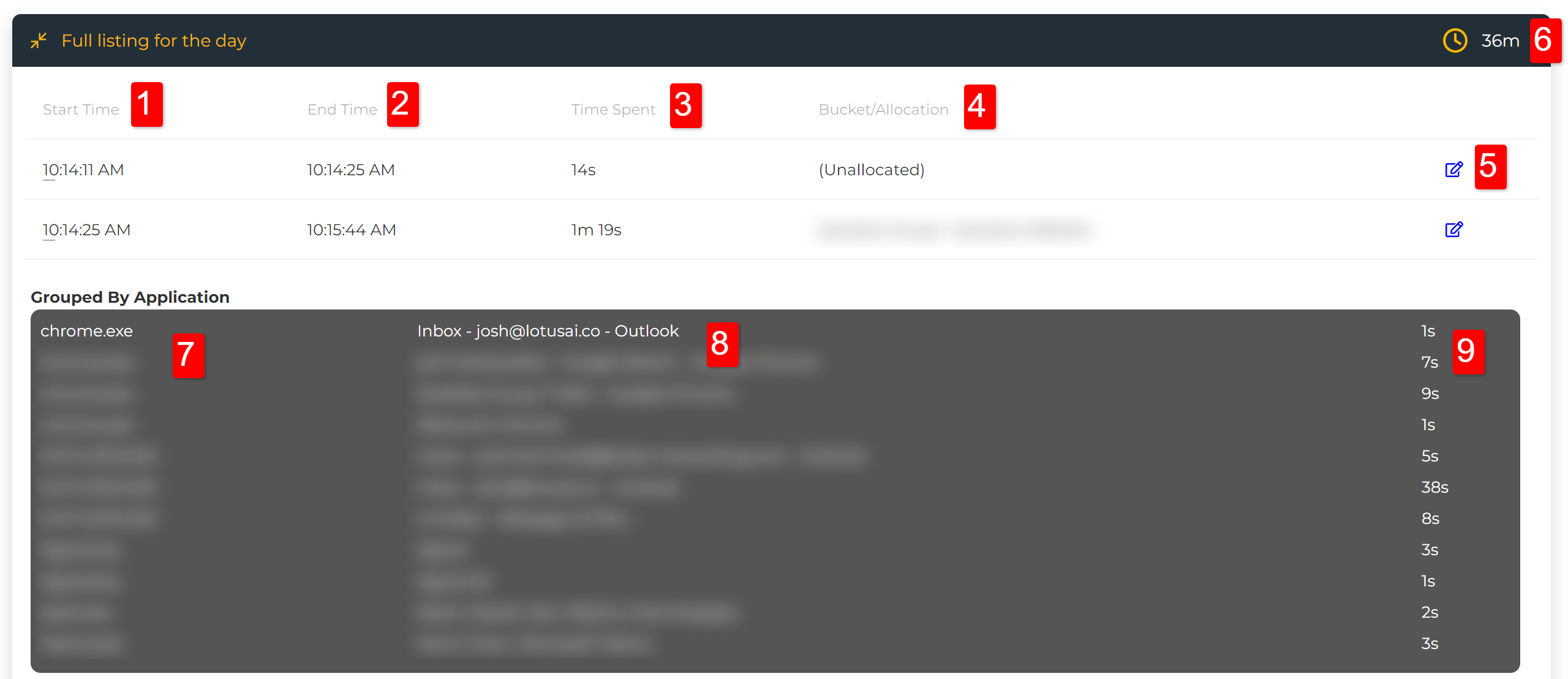
- When time started being allocated to that bucket
- When time stopped being allocated to that bucket
- Total of the time spent in the bucket
- The bucket your time been allocated to
- Edit allocation
- Total time tracked for the day
- The application the data relates to
- The metadata associated with the time entry
- Time spent in that location
When you want to change the allocation of the time, you can click on the edit icon (5) to make the changes.
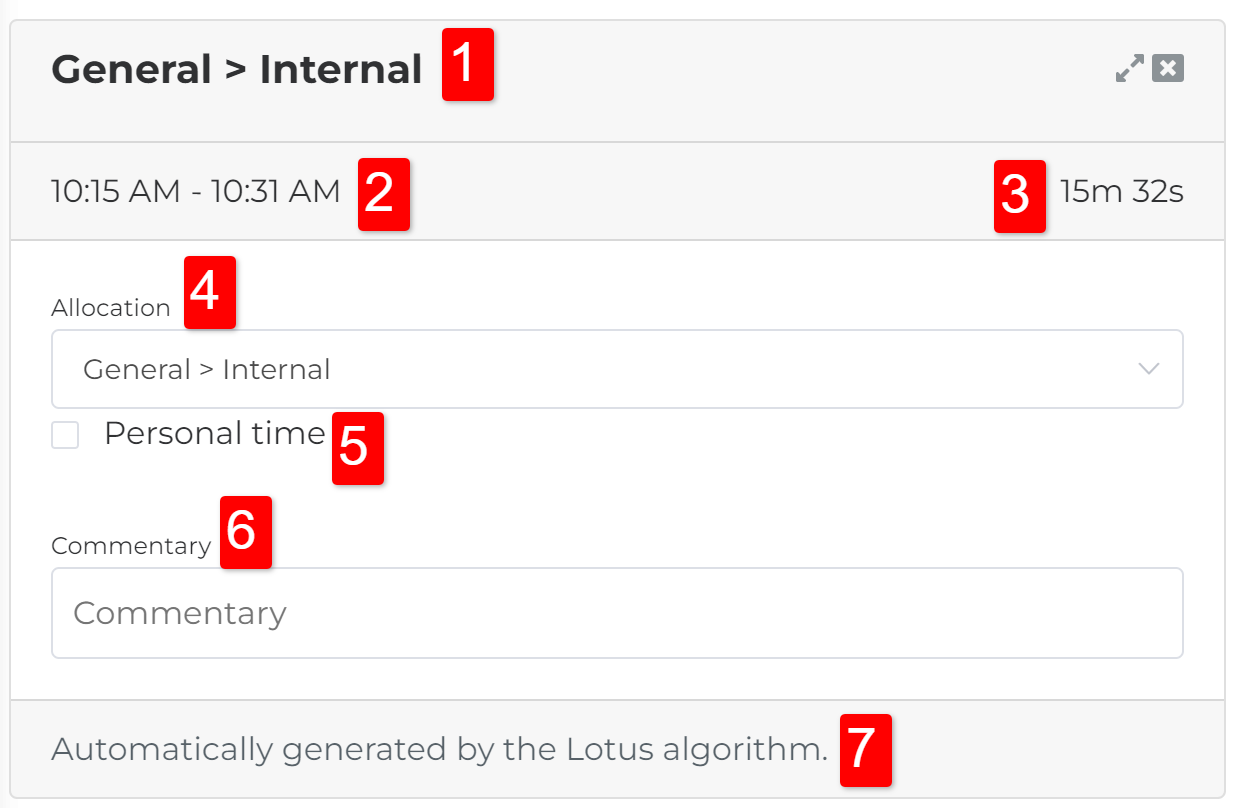
- The bucket the time is allocated to currently
- The start and end time of the entry
- Total time of entry
- Where you can change the allocation of this time
- Tick to mark the time as personal time
- Add notes/commentary to this entry
- The source of the time allocation