How Can We Help?
Adding a new user
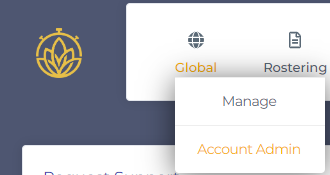
When a new user needs to be added to the system, from the portal go to Global > Account Admin
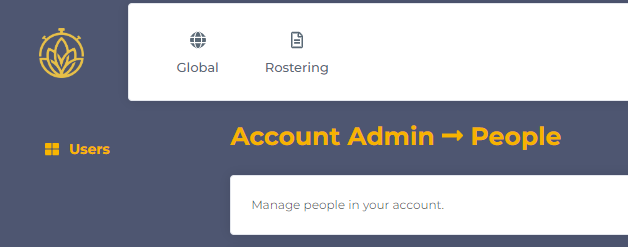
In Account Admin, click ‘Users’ on the left.
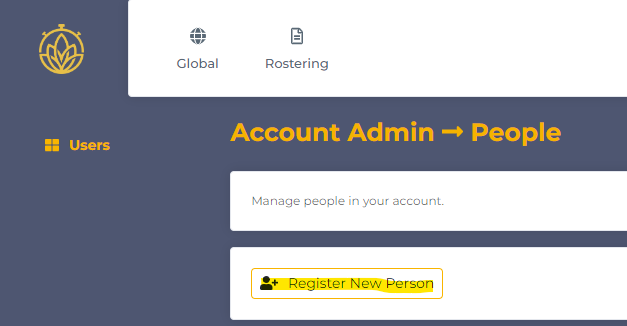
At the top of this page, click ‘Register New Person’
For a new person, you will need to populate all fields:
| Field | Purpose | Values |
|---|---|---|
| First Name | Specify the person’s first name | Free text |
| Last Name | Specify the person’s last name | Free text |
| Specify the person’s best email address for any emails/alerts that are raised by the system including password/PIN reset requests, etc | Free text | |
| Timesheet daily email | Determines whether a summary of the hours completed for the day is sent to the person | Where the person is using the desktop module or app, leave this as send. For all other users set this to ‘do not send’ |
| Employment Type | This is for reporting purposes only; please select the employment type that best reflects the person’s employment type | Full time, part time or casual |
| Role(s) | This drives what the person will be able to access within the system | For those who are only checking in and out each day, select ‘Rostered Worker’. If the user needs to access administration to run reports or manage shifts, select ‘Kiosk Admin’. A person can have both roles allocated if required |
| Kiosk PIN | For those people who are checking in and out, a 4 digit PIN number needs to be specified which they will need to populate to check in, take breaks and check out for the day | Numbers only – must be 4 digits |
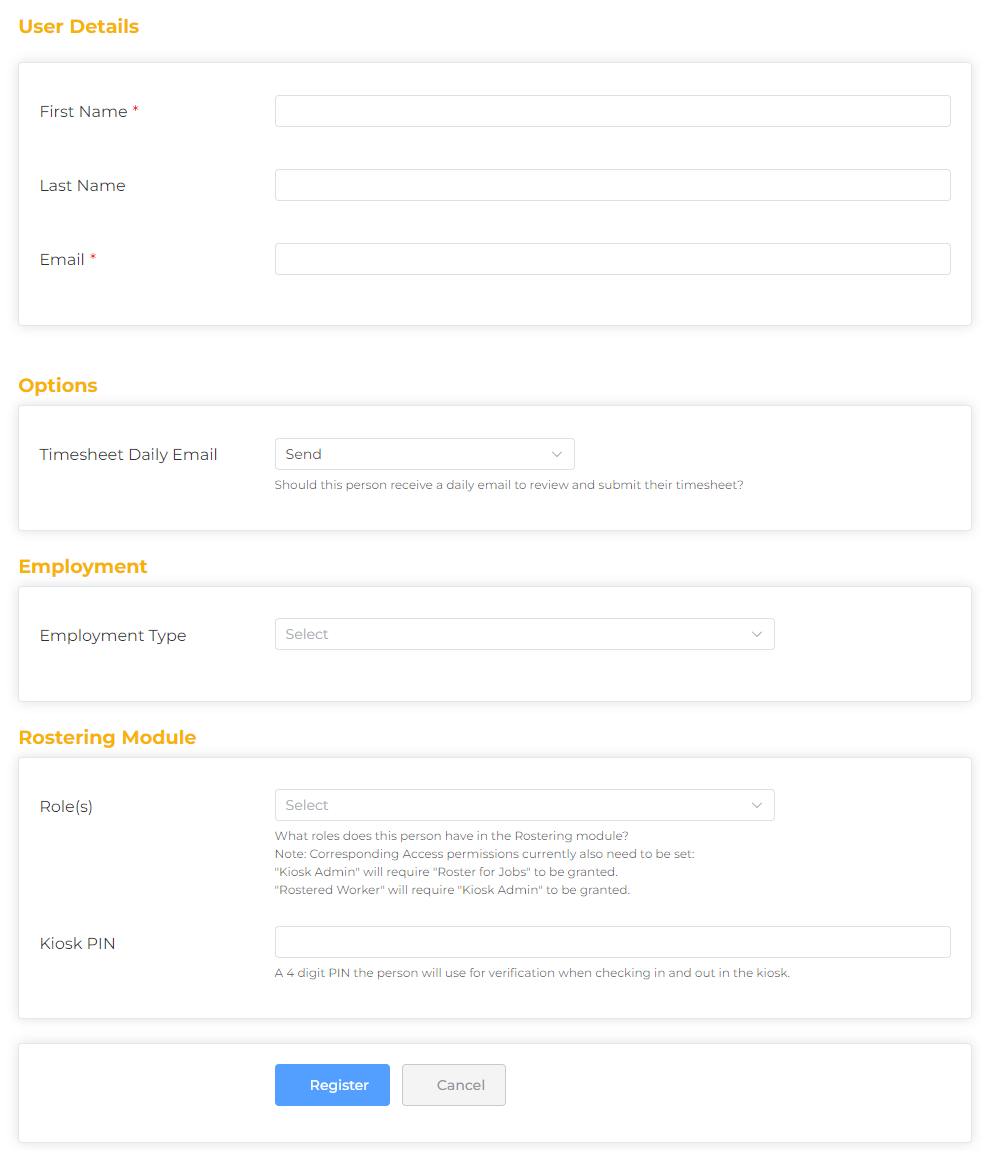
Once complete, click Register at the bottom of the page.